
Power Distribution and Intercom Setup / 电源分配与对讲系统安装
⚡ Power Distribution Team / 电源分配组
| Team / 小组 | Members / 成员 |
|---|---|
| Power Distribution / 电源分配 | • Jaturaphat (Dern) 🔑 |
🇬🇧 English Instructions
Purpose
This section provides the specific setup and dismantling instructions for the Power Distribution Team during the 2026 Bangkok Regional Convention. This team is responsible for routing power to all A/V equipment, supporting installation of the intercom communication system, and setting up the WM-1 wireless microphone system before final testing by the Audio Crew.
Required References
- Full Drawing Set: 📎 Complete PDF
- Congregation Job Hazard Analysis (DC-85): 📁 Google Drive Folder
- Wireless Microphone Setup: CO-160a, Chapter 3 — Wireless Microphones (WM-1), pages 9–10
- Specific Schematics:
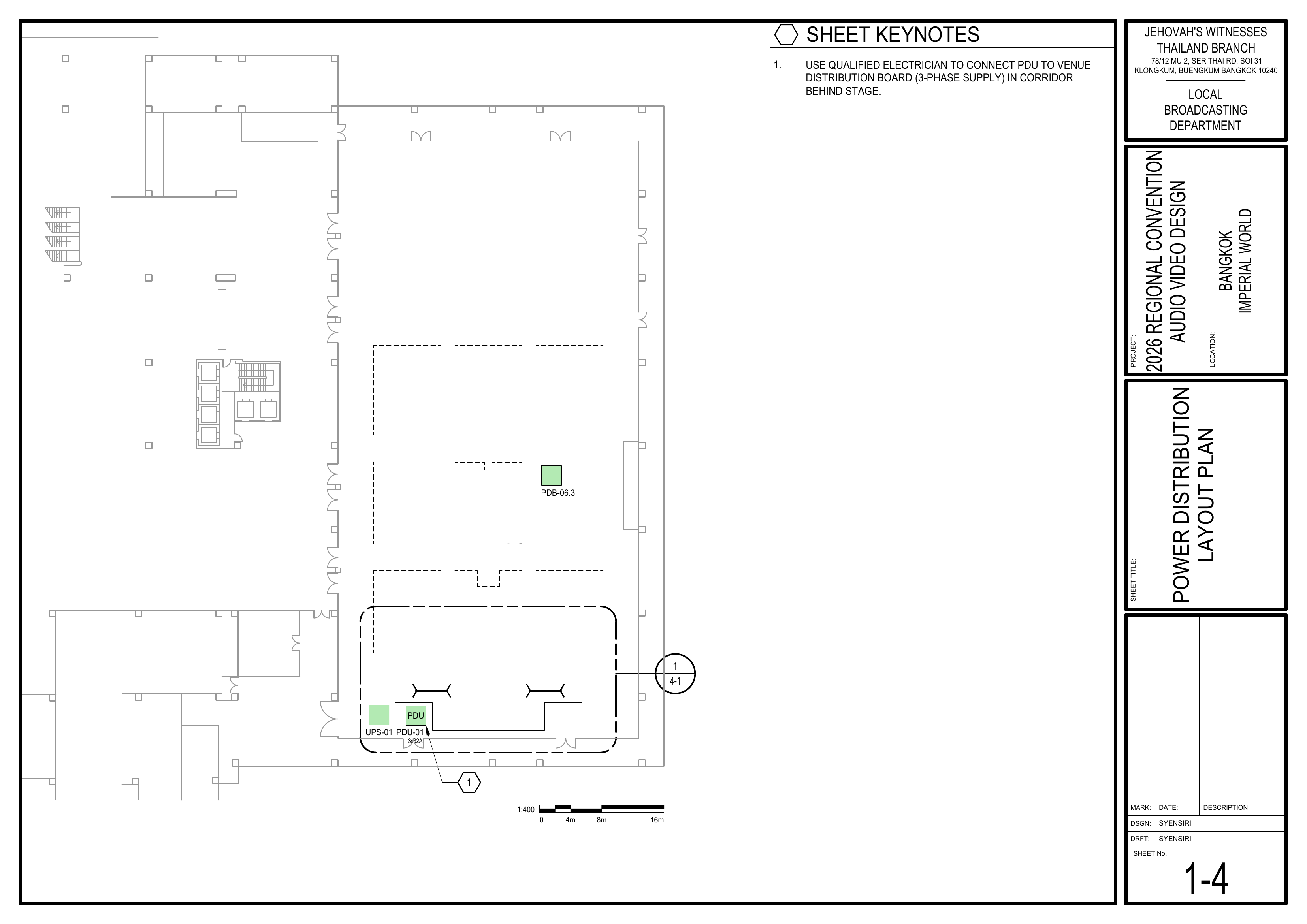
- 1-4 Power Distribution Layout Plan
- 4-1 Stage Area Equipment Layout Large Scale View
- 6-1 Audio Headend Wiring Diagram
- 6-4 Intercom System Wiring Diagram
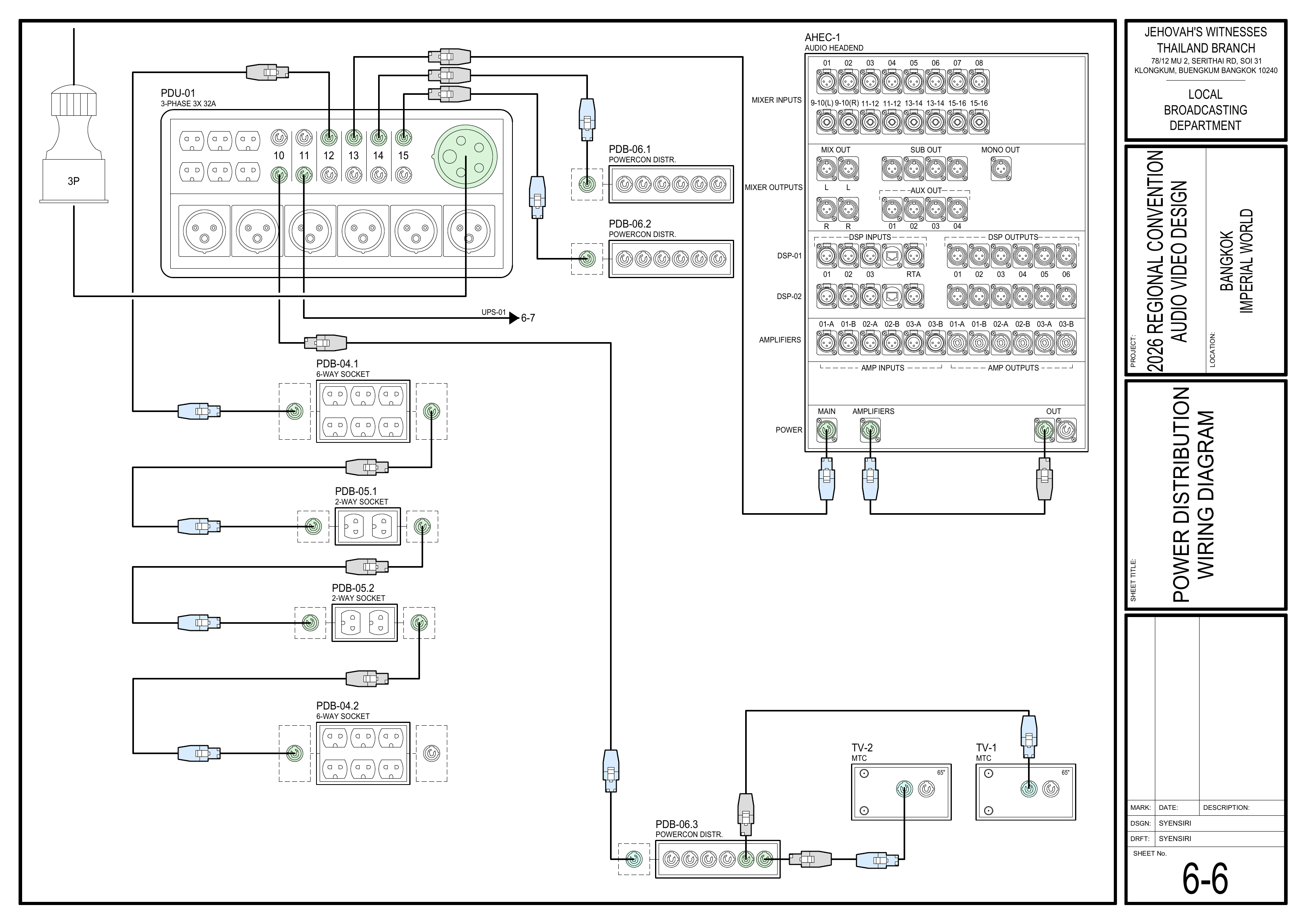
- 6-6 Power Distribution Wiring Diagram
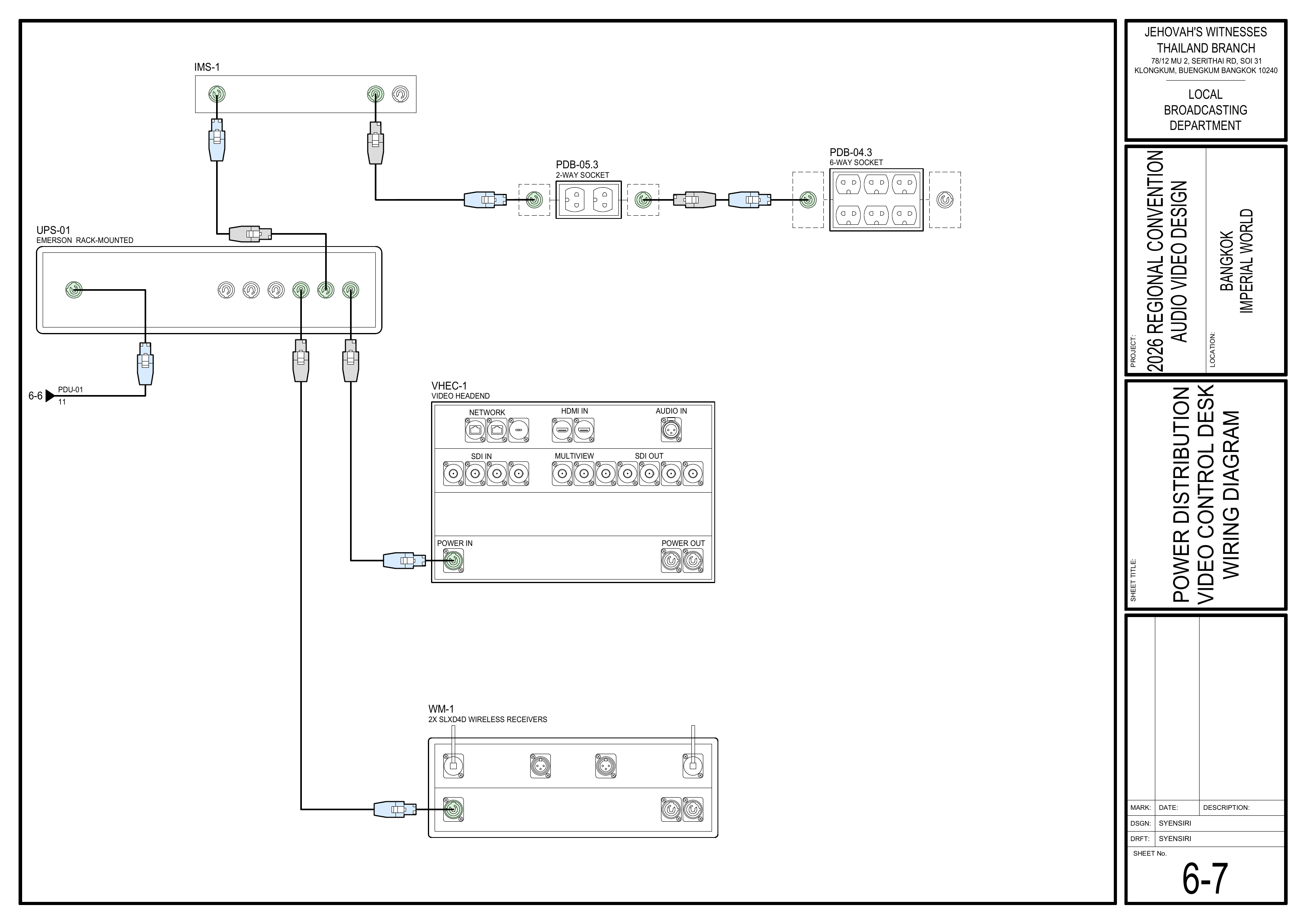
- 6-7 Power Distribution Video Control Desk Wiring Diagram
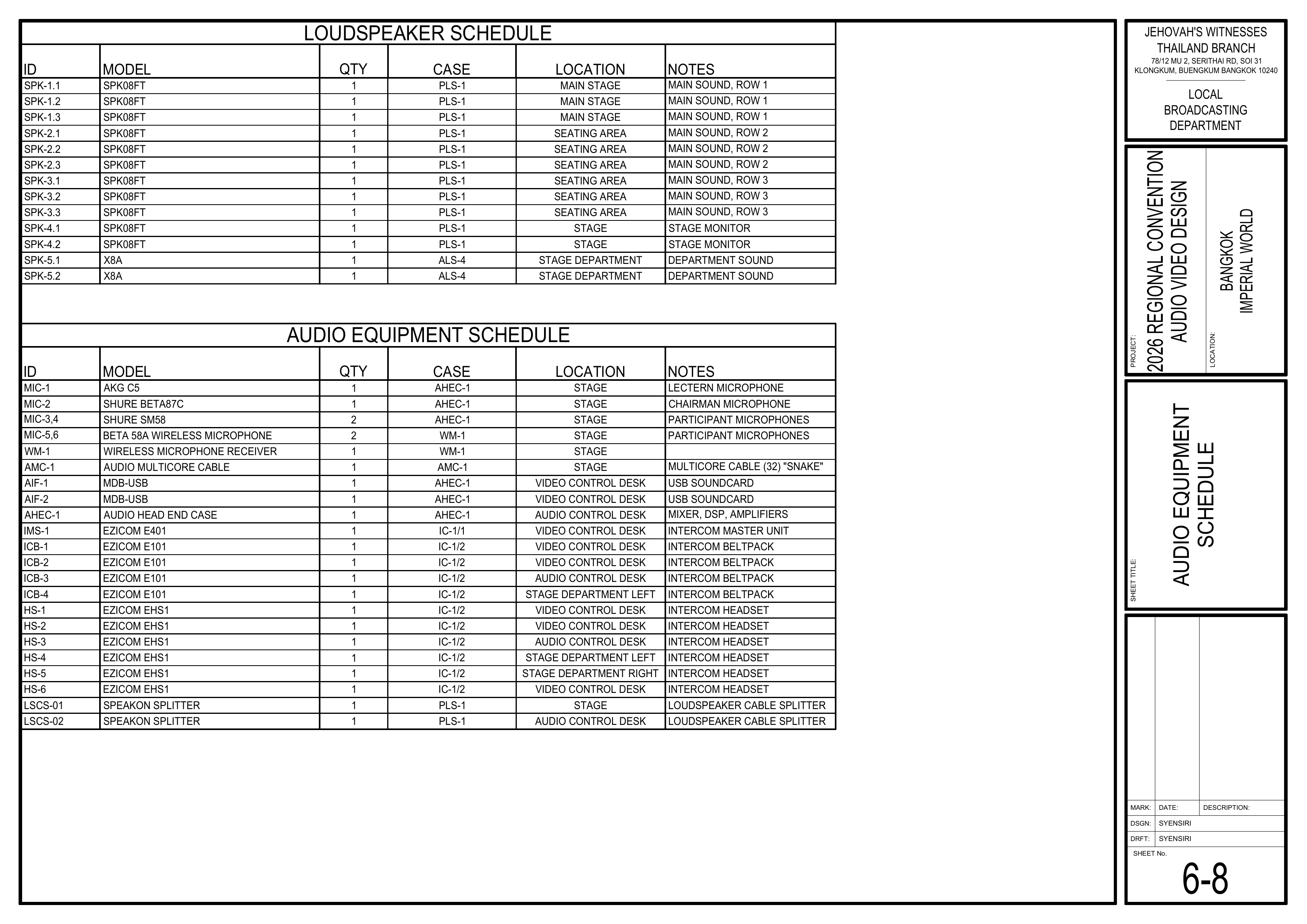
- 6-8 Audio Equipment Schedule
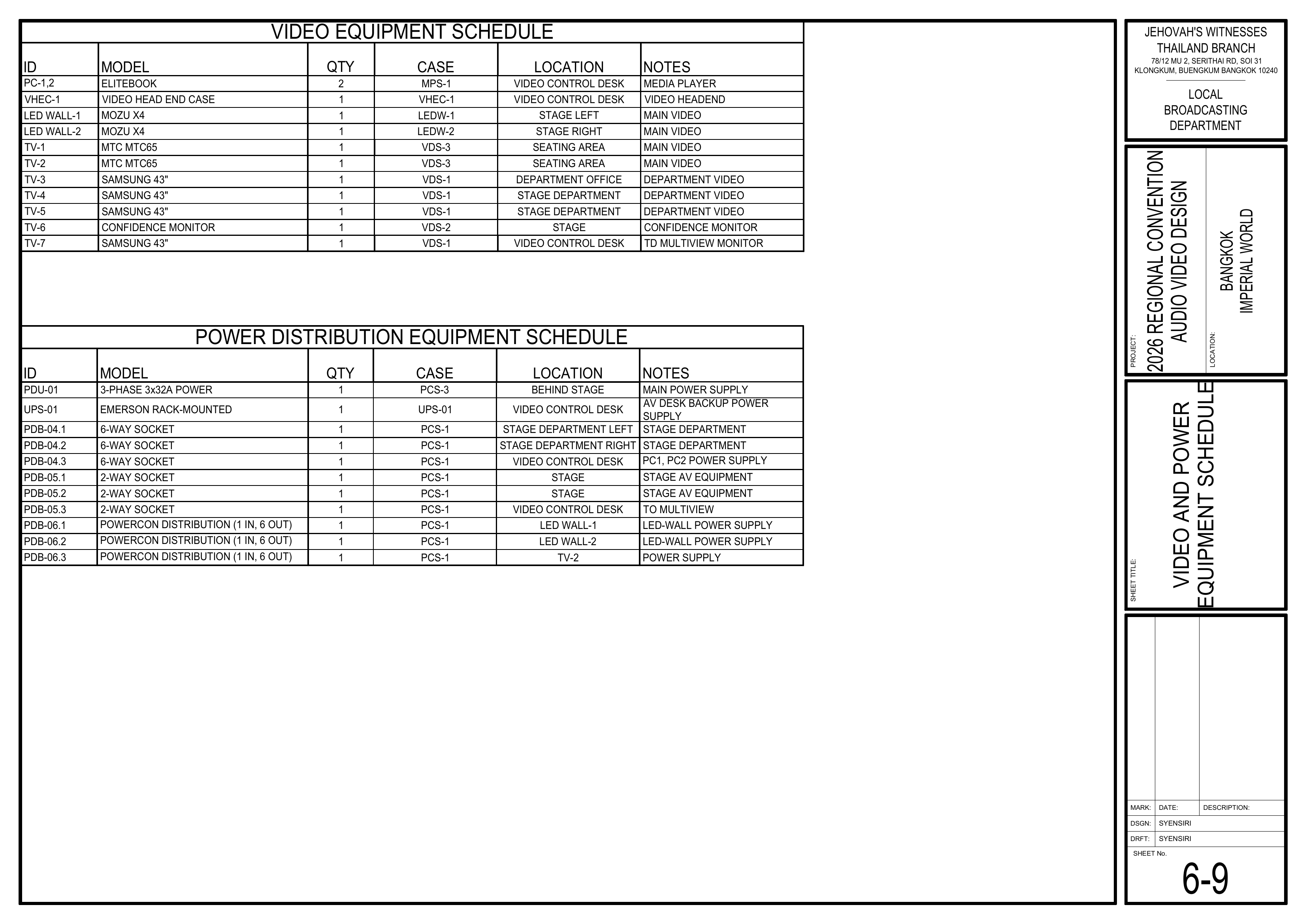
- 6-9 Video and Power Equipment Schedule
- 6-10 PDU Circuit Breaker Schedule
- Event Content List: Cases PCS-1, PCS-3, IC-1/1, IC-1/2, WM-1
Required Equipment Cases
- PCS-1: Contains power distribution cables, sockets, 1-phase PDU, and tools.
- PCS-3: Contains main power equipment, 3-phase PDU (PDU-01), and cables.
- IC-1/1: Contains the Ezicom Intercom Master Station (IMS-1).
- IC-1/2: Contains the Ezicom beltpacks and headsets.
- WM-1: Contains 1 SHURE SLXD4D dual wireless receiver and 2 SHURE BETA 58A handheld wireless microphones (MIC-5 and MIC-6).
💡 Priority / Operating Notes:
• Electrician Required: Use a qualified electrician to connect the main 3-phase PDU (PDU-01) to the venue distribution board in the corridor behind the stage.
• Do not overload electrical circuits.
• Use rubber cable protectors when crossing walkways and carpet covers under seating areas.
Setup Steps
1. Pull Power Cables to the A/V Booths
Schematics: Pages 1-4 Power Distribution Layout Plan, 6-6 Power Distribution Wiring Diagram, 6-7 Power Distribution Video Control Desk Wiring Diagram
- Pull power cables from the A/V control booths to the wall socket or main power supply.
- Route power to the Video Booth, Audio Booth, and any required control-area equipment.
- Do not connect or power on equipment until the Power Distribution Team confirms that power is ready.
🗺️ View Associated Schematics (Pages 1-4, 6-6, 6-7)
2. Pull Power Cables to the Stage
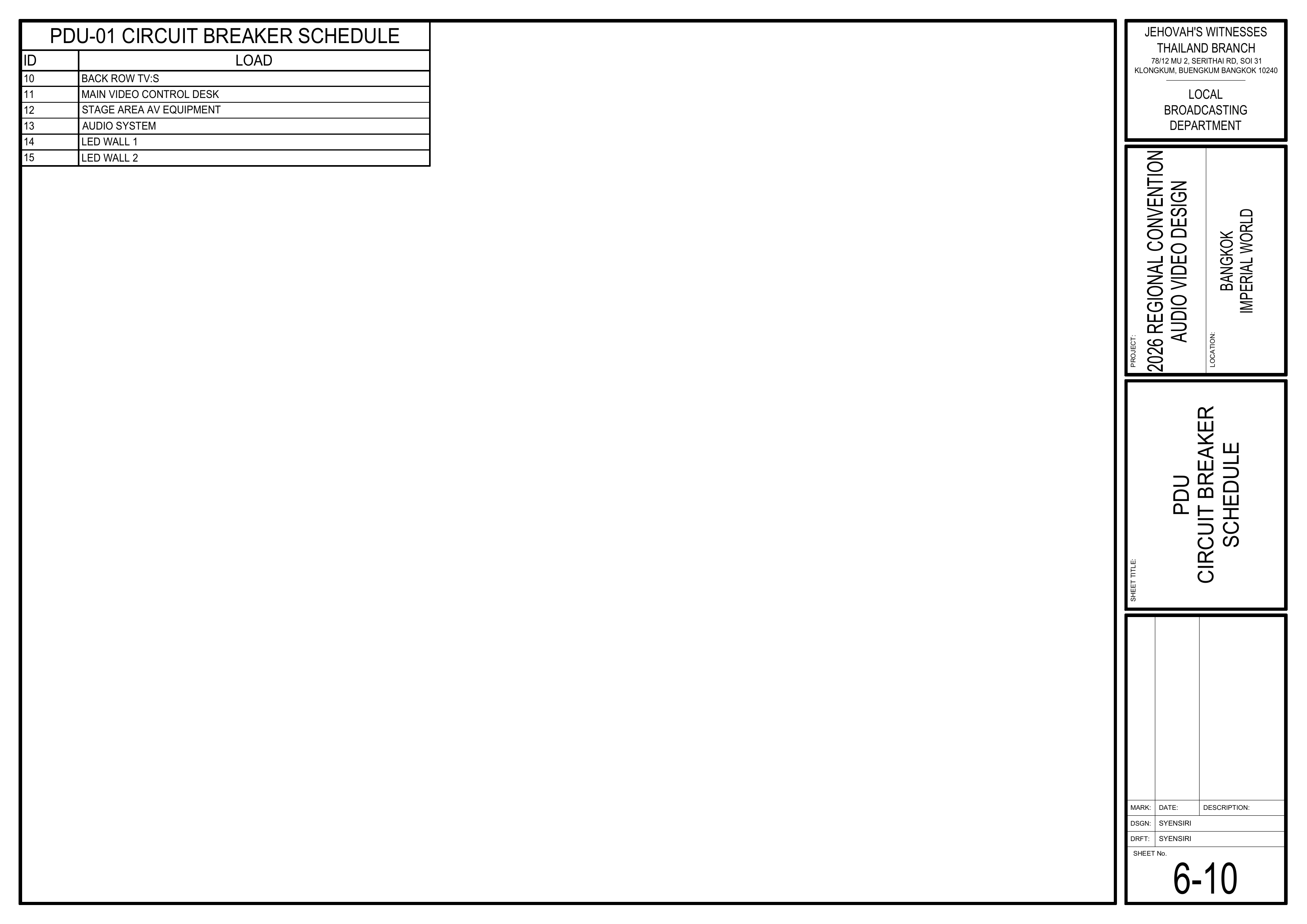
Schematics: Pages 1-4 Power Distribution Layout Plan, 6-6 Power Distribution Wiring Diagram, 6-9 Video and Power Equipment Schedule, 6-10 PDU Circuit Breaker Schedule
- Pull power cables from behind the stage up onto the stage to supply power for stage A/V equipment and LED walls.
- A qualified electrician must connect PDU-01 to the venue distribution board.
- Set up the PDU circuit breakers according to the schedule.
- Confirm that the required power points are available before the Audio, Video, and LED teams begin final commissioning.
🗺️ View Associated Schematics (Pages 1-4, 6-6, 6-9, 6-10)
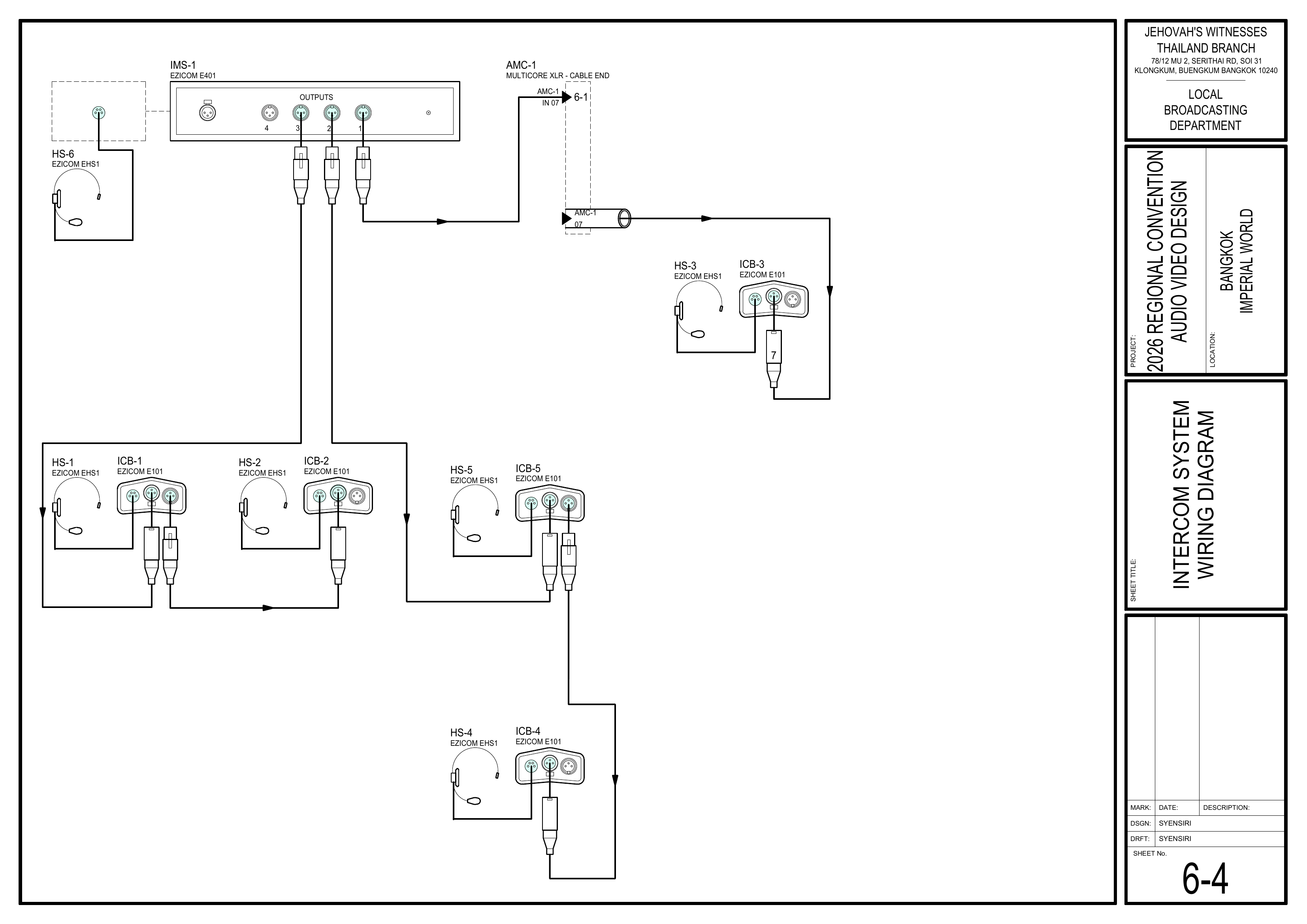
3. Install Intercom System
Schematics: Page 6-4 Intercom System Wiring Diagram
- Install the intercom system for the Video, Audio, and Stage crews.
- Place the main master station (IMS-1) at the Video Booth.
- Route the connections for the 2 stage headsets and 1 audio headset according to the schematic.
- Confirm communication between the Video Booth, Audio Booth, and Stage positions.
🗺️ View Intercom System Schematic (Page 6-4)
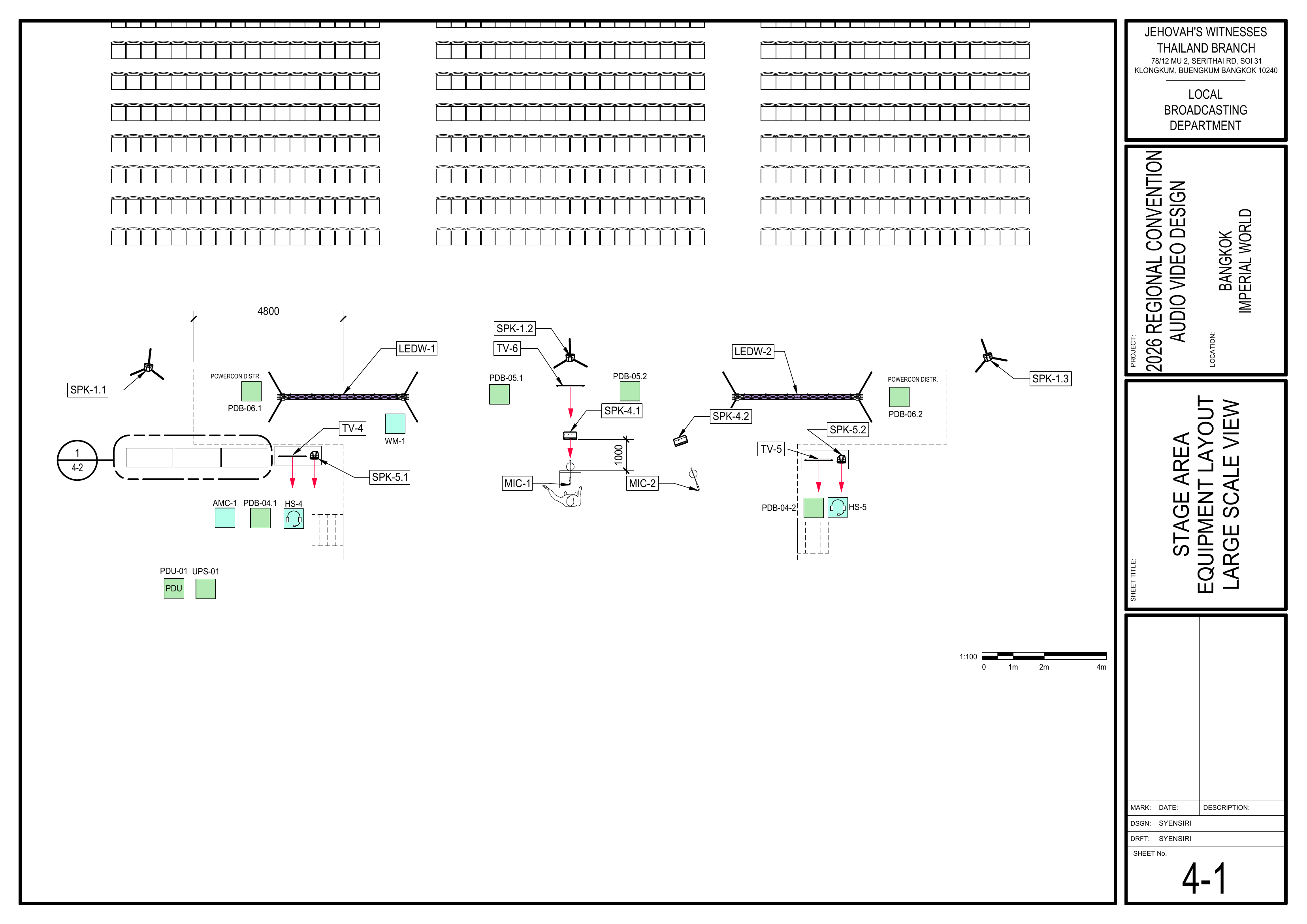
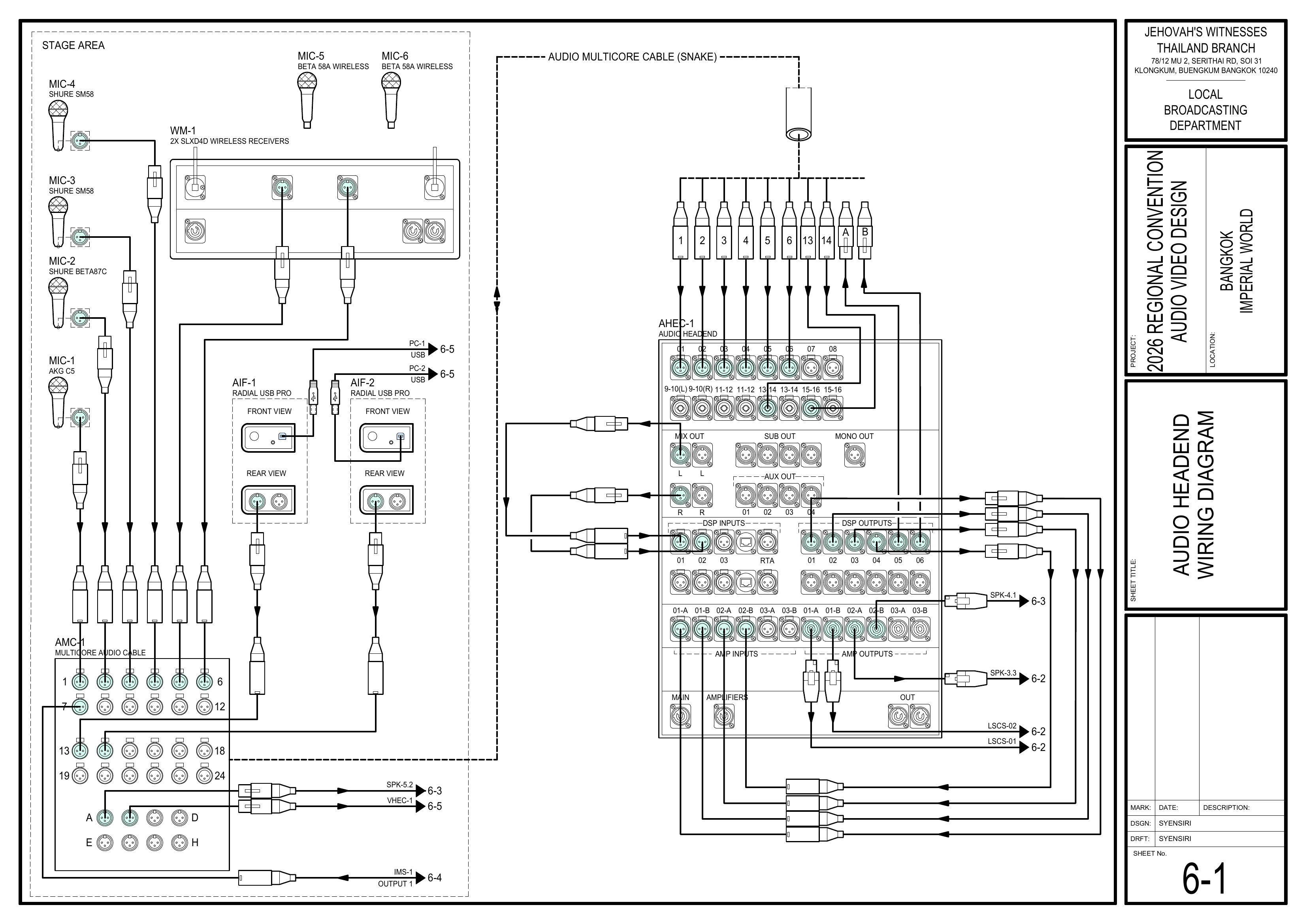
4. Install and Configure WM-1 Wireless Microphones
Reference: CO-160a, Chapter 3 — Wireless Microphones (WM-1), pages 9–10
Schematics: Pages 4-1 Stage Area Equipment Layout Large Scale View, 6-1 Audio Headend Wiring Diagram, 6-8 Audio Equipment Schedule
- Position and connect WM-1 according to the schematics. The event-specific WM-1 set contains 1 SHURE SLXD4D dual receiver and 2 BETA 58A handheld wireless microphones (MIC-5 and MIC-6).
- Connect power to WM-1 and turn on the receiver.
- On the receiver, select
1. Frequency Setup > 1.1 Guided Frequency Setup. - Select
Initialize My Systemand push the control knob to continue. - Turn off both transmitters (MIC-5 and MIC-6) before scanning.
- Select
start scan. - When the scan is complete, push the control knob to assign frequencies to the receiver.
- Turn on each transmitter one at a time.
- Align the infrared (IR) ports on the transmitter and receiver, then press
sync. - Confirm that both MIC-5 and MIC-6 are synchronized.
- If manual frequency setup is required, use
1. Frequency Setup > 1.4 Manual Frequency Setup. - Coordinate with the Audio Crew for final microphone signal and audio testing.
🗺️ View Associated Schematics (Pages 4-1, 6-1, 6-8)
5. Cable Management
- Use rubber cable protectors when crossing walkways.
- Use carpet covers for cables running under seating areas.
- Consider attaching a tag to each cable identifying its use if time permits.
- Note: When putting carpet covers down over walkways, tape one side only. Tape the other side once the entire installation is finished.
Completion Checklist
- Main 3-phase PDU connected by qualified electrician
- Circuit breakers set according to schedule
- Power cables pulled to A/V booths
- Power cables pulled to stage A/V equipment and LED walls
- Intercom master station placed at Video Booth
- Stage and Audio Booth intercom headsets connected
- WM-1 receiver positioned, connected, and powered
- Guided Frequency Setup completed
- MIC-5 and MIC-6 synchronized
- Audio Crew notified for final microphone signal and audio testing
- Walkway cables protected with rubber cable protectors
- Seating-area cables protected with carpet covers
- Keyman inspection completed
Dismantling Procedure
- Wait for the department briefing and prayer 30 minutes after the program ends on Sunday before dismantling.
- Carefully power down all equipment.
- Turn off MIC-5 and MIC-6 and return them to the WM-1 case.
- Disconnect WM-1, all power cables, and intercom cables.
- Remove cable protectors and carpet covers carefully.
- Coil and label all cables.
- Gather all equipment and bring it to the designated area.
- Note for team leader: Use the Bill of Materials (BOM) to cross off every box or case before it is brought to the truck:
- PCS-1
- PCS-3
- IC-1/1
- IC-1/2
- WM-1
🇨🇳 中文说明
目的
本页面提供 2026 年曼谷区域大会期间 电源分配组 的具体安装和拆卸说明。该小组负责为所有音视频设备布设电源、协助安装对讲通信系统,并在音频组进行最终测试前安装和设置 WM-1 无线麦克风系统。
参考资料
- 完整图纸: 📎 完整 PDF 文件
- 《会众工作危险性分析》(DC-85): 📁 Google Drive 文件夹
- WM-1 无线麦克风: CO-160a,第 3 章 — Wireless Microphones (WM-1),第 9–10 页
- 相关图纸:
- 1-4 电源分配布局图
- 4-1 舞台区域设备布局大比例图
- 6-1 音频主控接线图
- 6-4 对讲系统接线图
- 6-6 电源分配接线图
- 6-7 视频控制台电源接线图
- 6-8 音频设备清单
- 6-9 视频和电源设备清单
- 6-10 PDU 断路器清单
- 大会设备清单: 设备箱 PCS-1, PCS-3, IC-1/1, IC-1/2, WM-1
所需设备箱
- PCS-1: 包含电源分配线缆、插座、单相 PDU 和工具。
- PCS-3: 包含主电源设备、三相 PDU (PDU-01) 和线缆。
- IC-1/1: 包含 Ezicom 对讲系统主机 (IMS-1)。
- IC-1/2: 包含 Ezicom 对讲系统腰包和耳机。
- WM-1: 包含 1 台 SHURE SLXD4D 双通道无线接收机及 2 支 SHURE BETA 58A 手持无线麦克风(MIC-5 和 MIC-6)。
💡 优先事项 / 操作提示:
• 需要电工: 请安排合格的电工将主三相 PDU (PDU-01) 连接到讲台后方走廊的场馆配电箱(三相电源)。
• 不要让电路过载。
• 穿过过道时使用橡胶电缆盖板,座位区域下方使用地毯盖板。
安装步骤
1. 布置音视频控制台电源
图纸:1-4 电源分配布局图、6-6 电源分配接线图、6-7 视频控制台电源接线图
- 将电源线从音视频控制台布置连接到墙壁插座或主电源。
- 为视频控制台、音频控制台及所需控制区设备布设电源。
- 在电源分配组确认电源准备好之前,不要连接或开启设备。
🗺️ 查看相关图纸(图纸 1-4, 6-6, 6-7)
2. 布置讲台电源
图纸:1-4 电源分配布局图、6-6 电源分配接线图、6-9 视频和电源设备清单、6-10 PDU 断路器清单
- 将电源线从讲台后方的走廊拉到讲台上,为讲台音视频设备和 LED 屏幕供电。
- 必须由合格的电工将 PDU-01 连接到场馆配电箱。
- 根据清单设置 PDU 断路器。
- 在音频组、视频组和 LED 组进行最后调试前,确认所需电源点已准备好。
🗺️ 查看相关图纸(图纸 1-4, 6-6, 6-9, 6-10)
3. 安装对讲系统
图纸:6-4 对讲系统接线图
- 为视频组、音频组和讲台组安装对讲系统。
- 将对讲系统主机 (IMS-1) 放置在视频控制台。
- 根据图纸连接通往讲台的 2 个耳机和音频控制台的 1 个耳机。
- 确认视频控制台、音频控制台和讲台位置之间通讯正常。
🗺️ 查看对讲系统图纸(图纸 6-4)
4. 安装并设置 WM-1 无线麦克风系统
参考资料:CO-160a,第 3 章 — Wireless Microphones (WM-1),第 9–10 页
图纸:4-1 舞台区域设备布局大比例图、6-1 音频主控接线图、6-8 音频设备清单
- 按照图纸放置并连接 WM-1。本次大会的 WM-1 包含 1 台 SHURE SLXD4D 双通道接收机及 2 支 BETA 58A 手持无线麦克风(MIC-5 和 MIC-6)。
- 连接 WM-1 电源,并开启接收机。
- 在接收机上选择
1. Frequency Setup > 1.1 Guided Frequency Setup。 - 选择
Initialize My System,然后按下控制旋钮继续。 - 扫描前关闭两个发射器(MIC-5 和 MIC-6)。
- 选择
start scan扫描频率。 - 扫描完成后,按下控制旋钮,为接收机分配频率。
- 逐一开启发射器。
- 将每支发射器与接收机的红外(IR)端口对准,然后按
sync。 - 确认 MIC-5 和 MIC-6 均已成功同步。
- 如果需要手动设置频率,请使用
1. Frequency Setup > 1.4 Manual Frequency Setup。 - 完成后与音频组协调,由音频组进行最终麦克风信号和音频测试。
🗺️ 查看相关图纸(图纸 4-1, 6-1, 6-8)
5. 线缆管理
- 在穿过过道时使用橡胶电缆盖板。
- 座位区域下方的线缆使用地毯盖板。
- 如果时间允许,请考虑为每根线缆贴上标签以标明其用途。
- 注意: 在过道铺设地毯盖板时,只需先用胶带固定一侧。等整个安装完成后再用胶带固定另一侧。
完成检查表
- 合格电工已连接主三相 PDU
- 断路器已按清单设置
- 电源线已拉至音视频控制台
- 电源线已拉至讲台音视频设备和 LED 屏幕
- 对讲主机已放置在视频控制台
- 讲台和音频控制台对讲耳机已连接
- WM-1 接收机已放置、连接并通电
- Guided Frequency Setup 已完成
- MIC-5 和 MIC-6 已同步
- 已通知音频组进行最终麦克风信号和音频测试
- 过道线缆已使用橡胶电缆盖板保护
- 座位区域线缆已使用地毯盖板保护
- 负责人已检查确认
拆卸步骤
- 在星期日节目结束 30 分钟后,等待整个部门的简短会议和祷告后再开始拆除工作。
- 小心关闭所有设备电源。
- 关闭 MIC-5 和 MIC-6,并将它们放回 WM-1 设备箱。
- 断开 WM-1、所有电源线和对讲系统线缆。
- 小心移除电缆盖板和地毯盖板。
- 整理并标识所有线缆。
- 收集所有设备并带到指定区域。
- 组长注意: 在将每个箱子或设备箱搬上卡车前,请使用物料清单 (BOM) 核对并划掉每一项:
- PCS-1
- PCS-3
- IC-1/1
- IC-1/2
- WM-1